찜 목록

전체선택 삭제

톡 상담

톡상담 안내 원활한 고객응대를 위해
카카오톡 1:1 채팅 상담 일시 중단하고,
톡 상담은 챗봇 상담으로만 운영됩니다.

자세한 문의는 고객센터 1544-6698로 문의주세요.

대량 옵셋 상담 기업체, 공공기관, 도서관 등 다량의 도서, 잡지, 인쇄 및 출판이 필요하신 경우 대량 옵셋 전문 담당자와 상담하실 수 있습니다.

대량 옵셋 상담 신청

근무시간(상담 가능 시간) - 평일 09:30 ~18:30
  (식사시간 12:00 ~ 13:00)

- 토/일/공휴일 휴무

- 톡상담이 불가한 경우,
  1:1게시판에 남겨주세요.

이메일 - admin@redprinting.co.kr

입금 계좌안내 IBK 기업은행
513-027986-01-015
(주식회사 베러웨이 시스템즈)

장바구니

전체선택 삭제

예상 결제금액 0

to top

Freezer LabelsReorder is available for this item.

Paper
Printing Option
6 Color CMYK (4 Colors) + 2 additional colors
(Light Cyan/Light Magenta) for more vibrant prints.
Default CMYK 4 color is the standard quality.
Cutting Type
Specification(mm)
Cutting Size : Horizontal
/ Vertical

Working Size : Horizontal
/ Vertical

Additional charges may occur
     if the length of the cutting line exceeds .
※ Please set working size to 2㎜ and above to avoid cutting mistake.
No. Of Designs
pcs
※ No. Of Designs can be added in Editor.
Qty / Per Design
pcs
Order Title
Order Detail
File Upload
Changing the file upload method will reset the previous one
PDF ONLY
Creative Editor
Finishing
모양컷팅

* RED 칼선은 고객센터 - 칼선/후가공 템플릿에서 다운받으실 수 있습니다.
* 고객 자유형은 고객님의 자유 칼선을 업로드 하시는 선택 사항 입니다.

Choose Numbering

Type iin the desired number and select desired font.
Recommended Product

Note

Cutting / Working Size

01. Cutting Size
: This is the trim line where the artwork will be cut/cropped off.

02. Safety Area - 3mm Margin (inward)
: All content in here will not be cropped off. Do ensure that all important content are kept within this area.

03. Working Size - 2mm Margin (outward)
: This is the bleed area whereby this portion will be trimmed away. Make sure that you fill this area with artwork background so that there will no visible white edges in final output, as there is usually a shift of 1-2mm in printing/cutting during production. All files are required to be submitted in the working size.

Cutting Margin / Bleed1 Cutting Margin / Bleed2

As there is usually a shift of 1-2mm in printing/cutting during production, do make sure to FILL that image all the way to the edge of the working size.
(Working size = cutting size + 2mm margin bleed on all sides)

Image Resolution1 Image Resolution2

For best printing results, we recommend to upload images with resolution of above 300dpi. If your image is of low-resolution,
you can sharpen images by increasing dpi but this will not vastly improve the sharpness, or you can print your desired image (low-res) as it is.

Create cut line using pen tool via path in Magenta 100% (M) using vector line (stroke).
Ensure to save print and cut line in a separate layer.

Ensure to create cut line via path in magenta colour(M=100%) Stroke Size: 0.5pt

Cut Line Note
Remove extra points on the cut line
Object > Path > Simplify

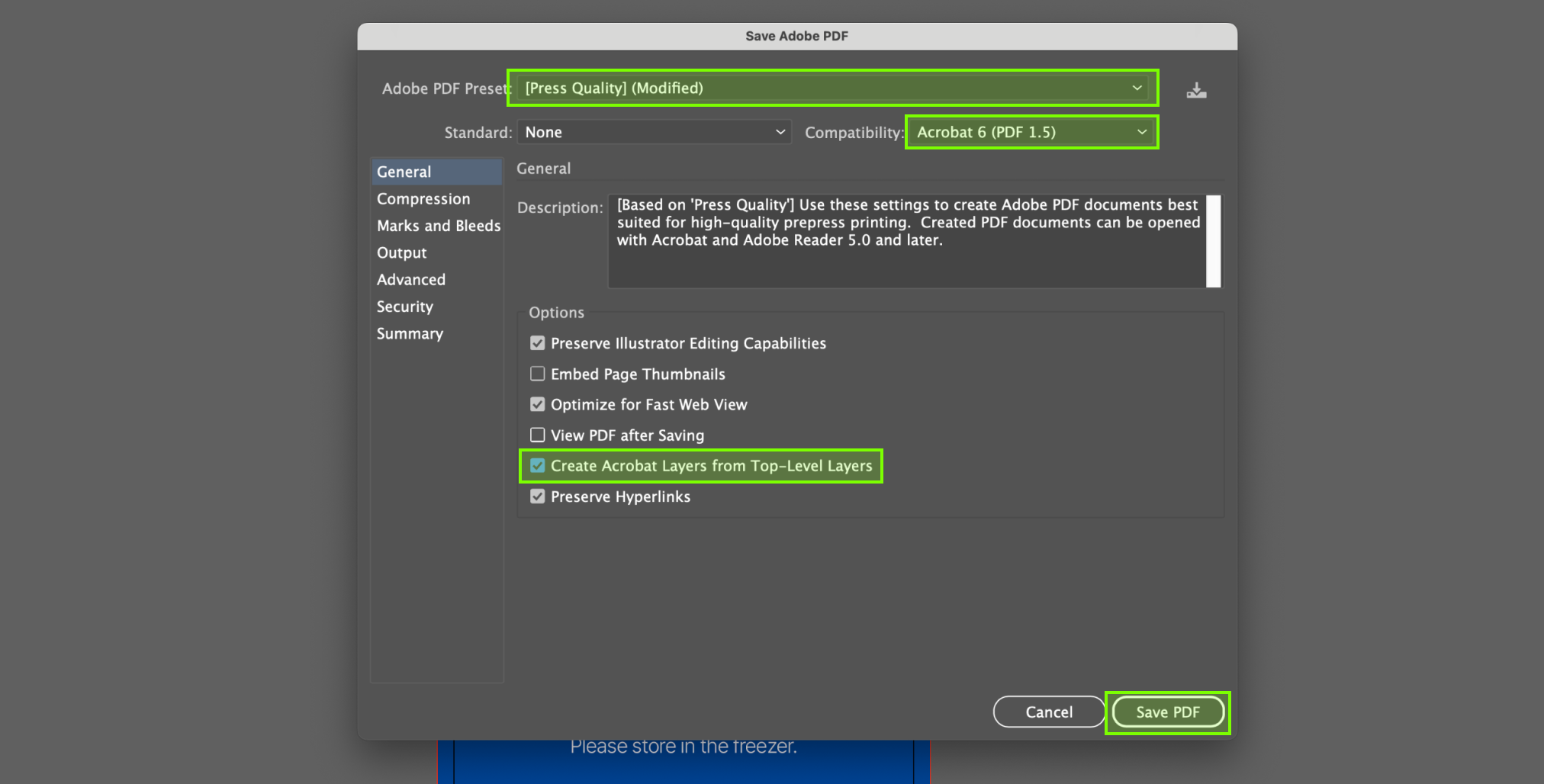
Select [Press Quality]
Select Acrobat PDF 1.5 and above.
Select Create Acrobat Layers from Top-Level Layers.

Select [Press Quality]
Select Acrobat PDF 1.5 and above.
Select Create Acrobat Layers from Top-Level Layers.

Freezer Labels

Refrigerator & Freezer Use

icon_arrow
icon_arrow

Product Features

  • Refrigerator & Freezer Use

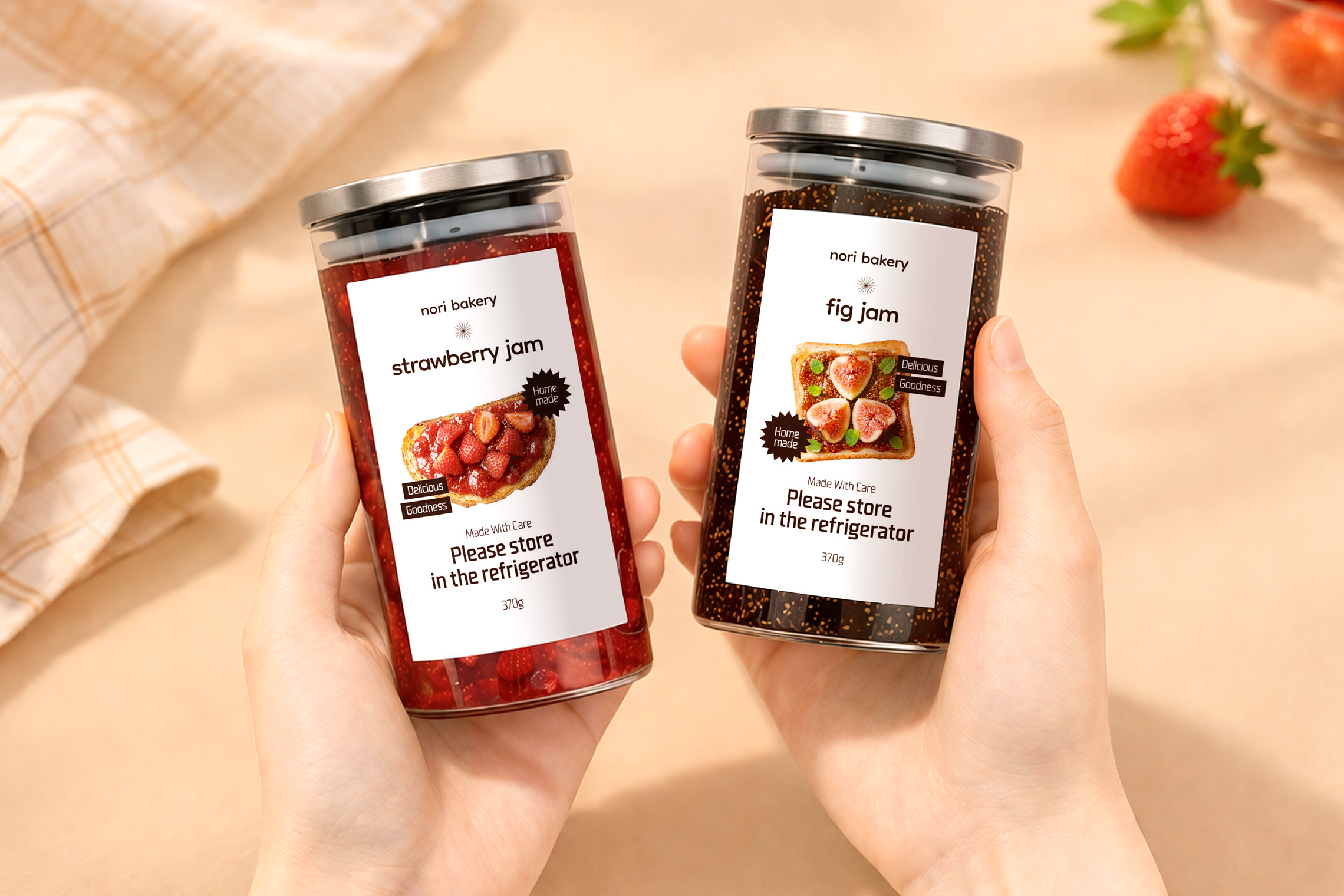
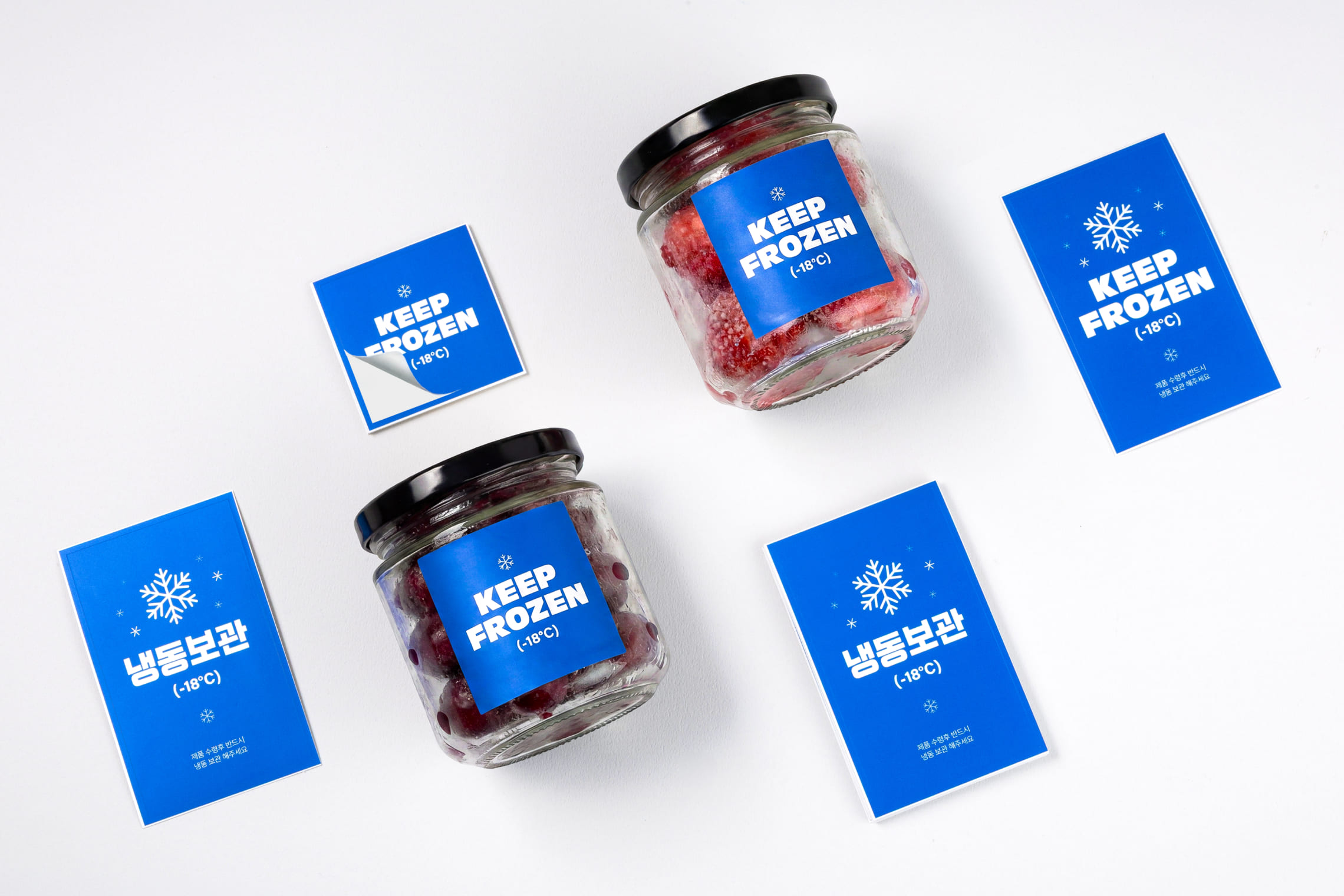
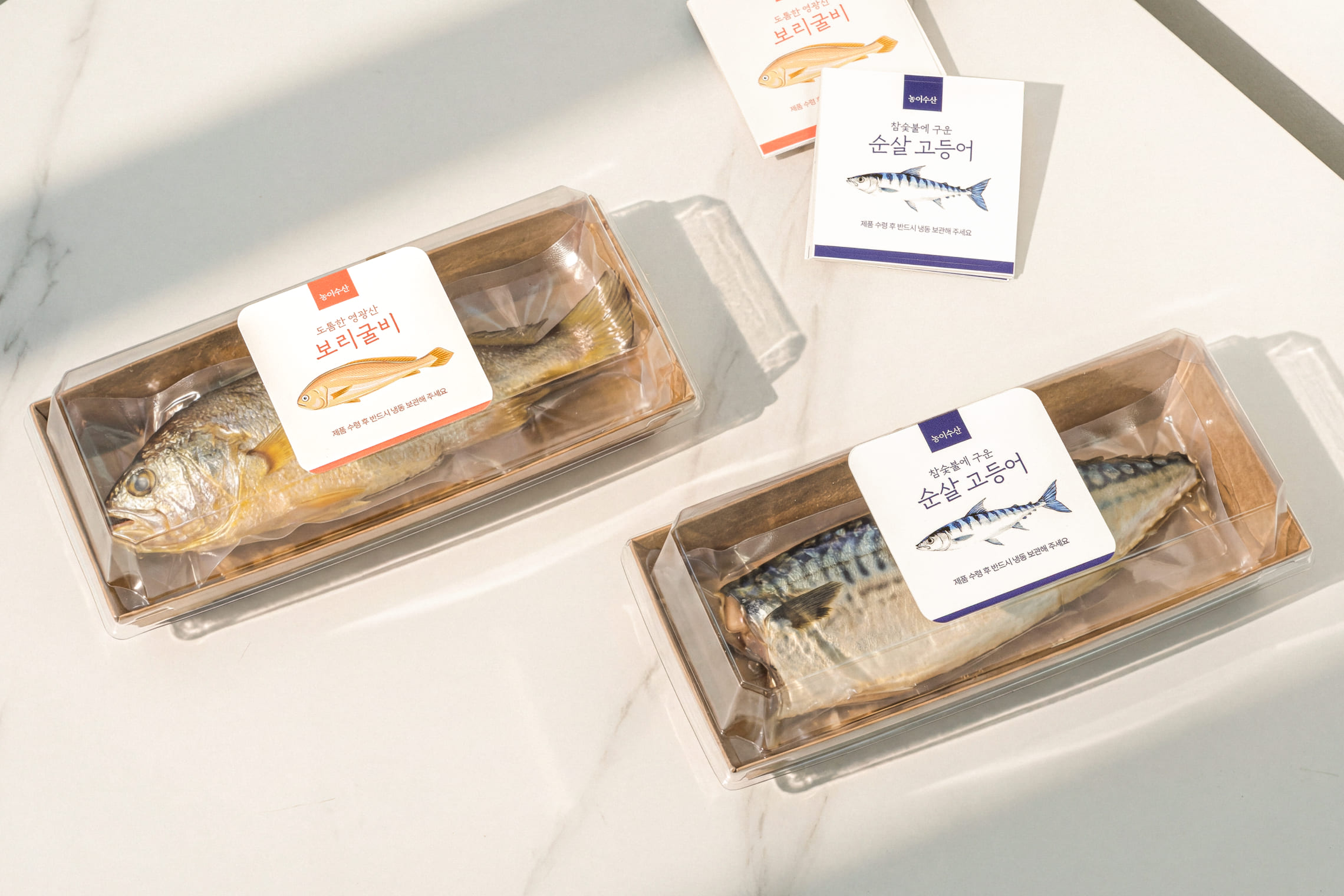
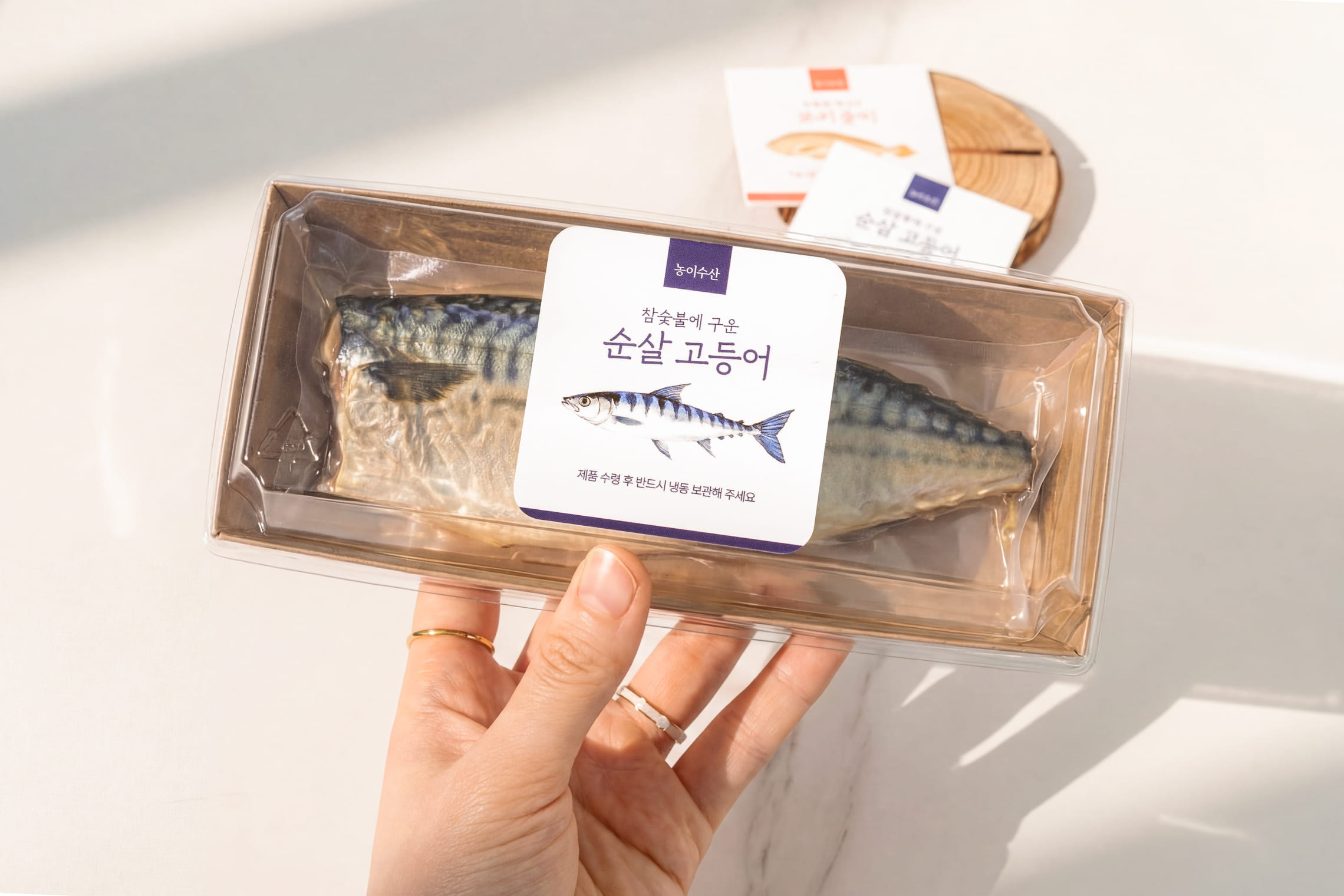
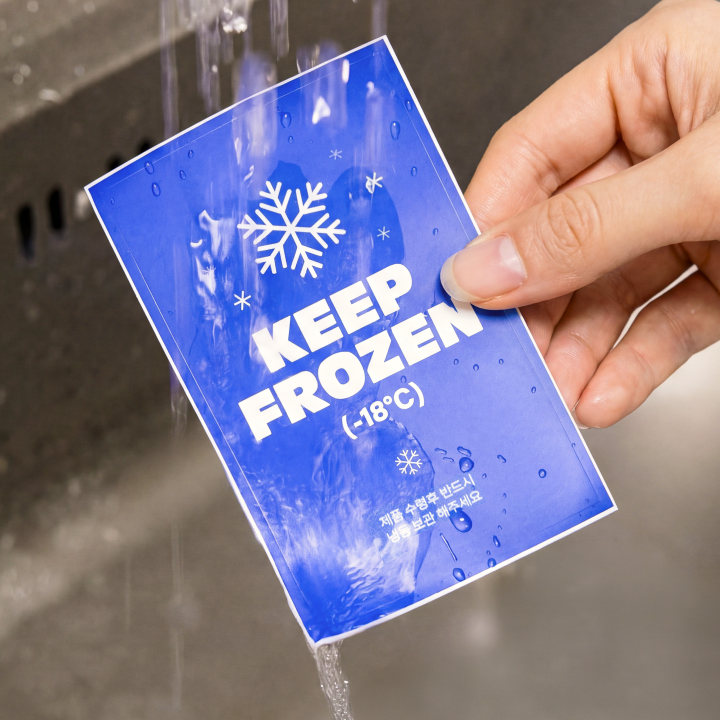
    There cold storage labels are designed to prevent peeling from condensation and low temperatures. Ideal for freezer goods, food packaging and more.
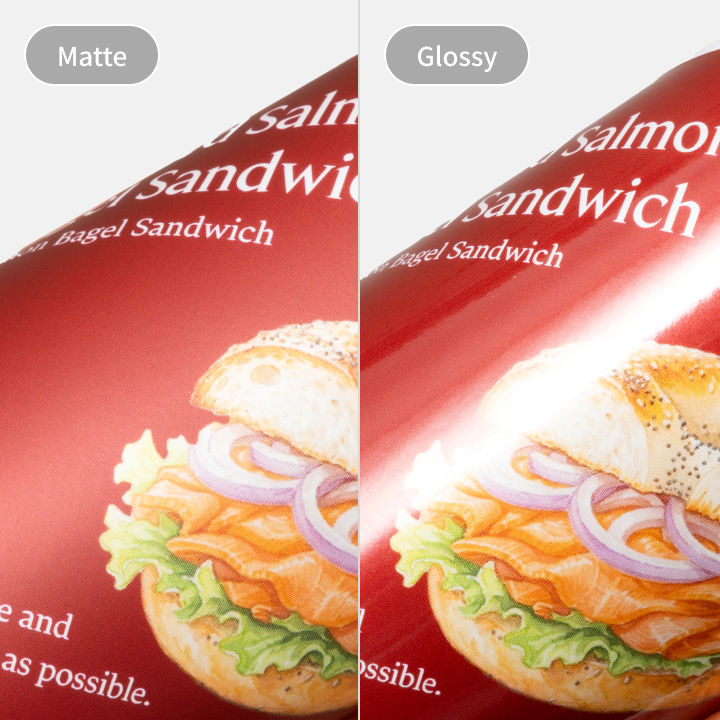
  • Coating

    Matte and glossy are available. Choose matte for a non-reflective and anti-glare appearance. Or opt for a high-shine and bold look with a glossy finish.
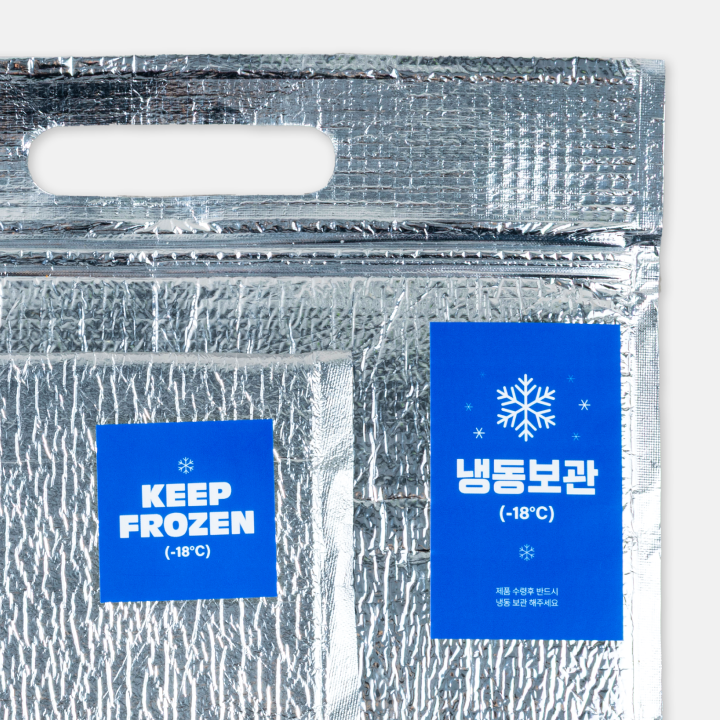
  • Label Use

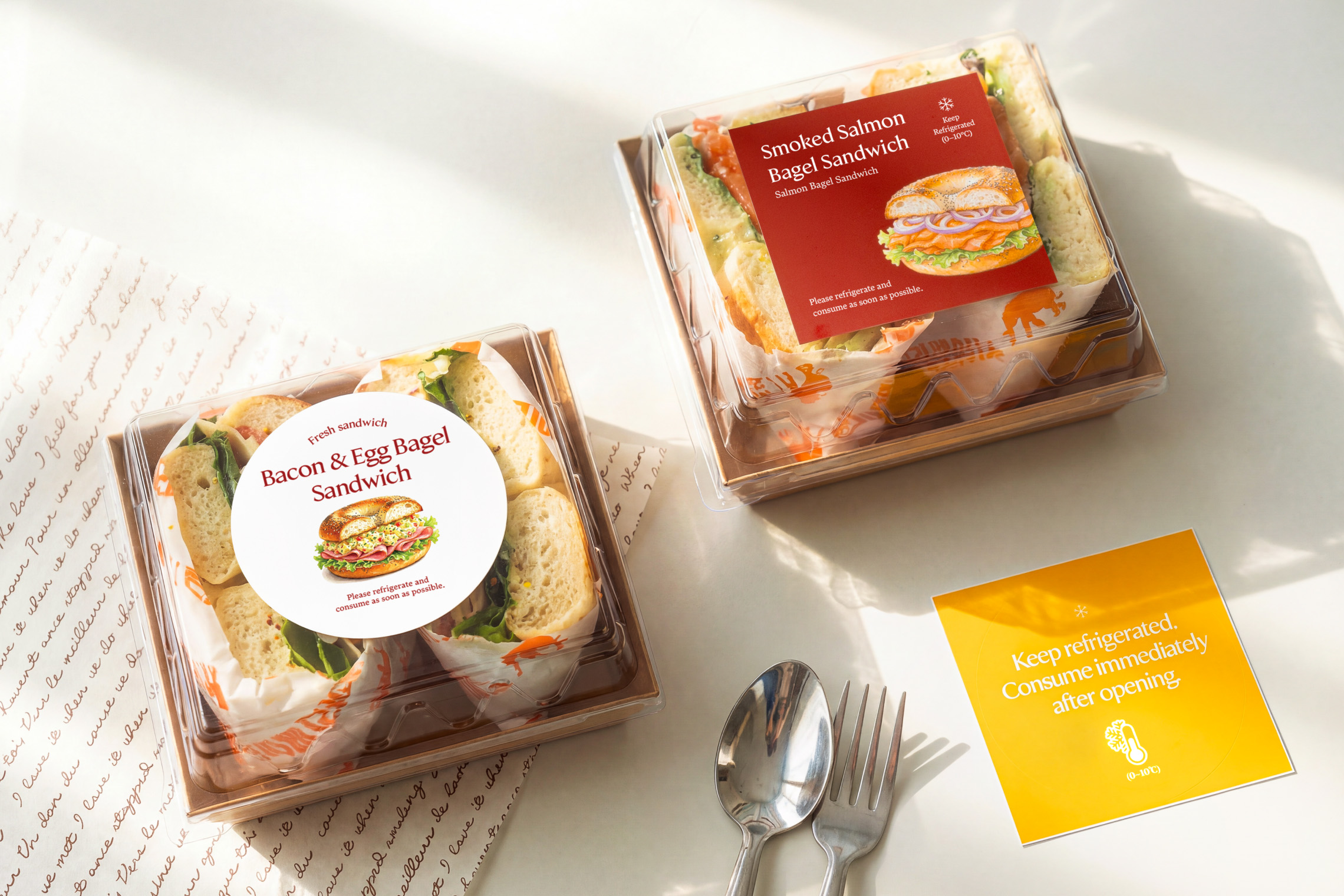
    · Food & Beverages : Frozen, dairy, fresh produce
    · Healthcare : Vaccines & Temp-sensitive specimens
    · Inventory Logistics: Cold-Chain Shipping Labels

Bundle vs Individual
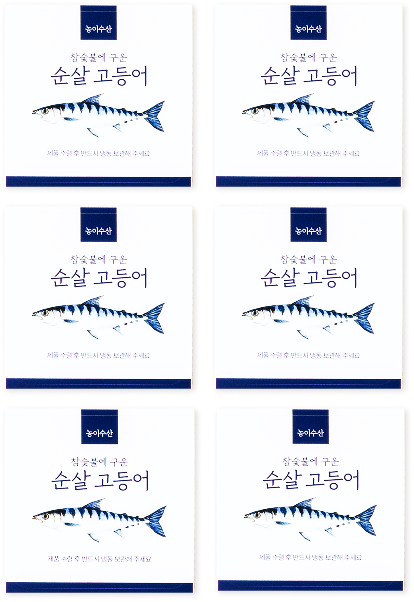
Individual Cutting

Cut into piece by piece

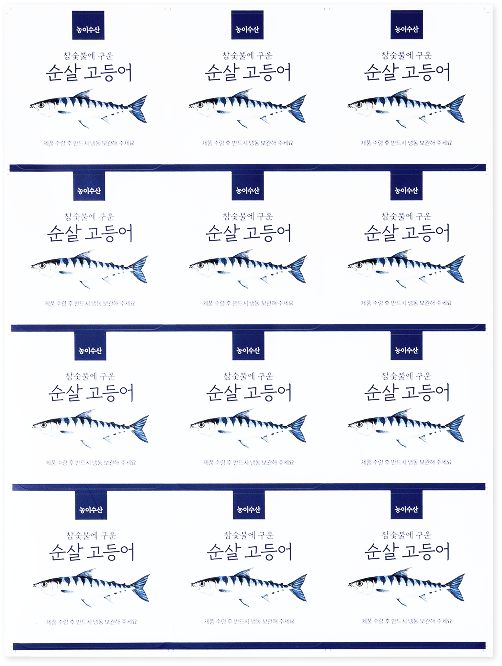
Bundle Cutting

Comes in either A3 or A4 sheets

Data Production & Ordering

1. How To Create

Download ourTemplateand place your artwork design into the Printing layer.
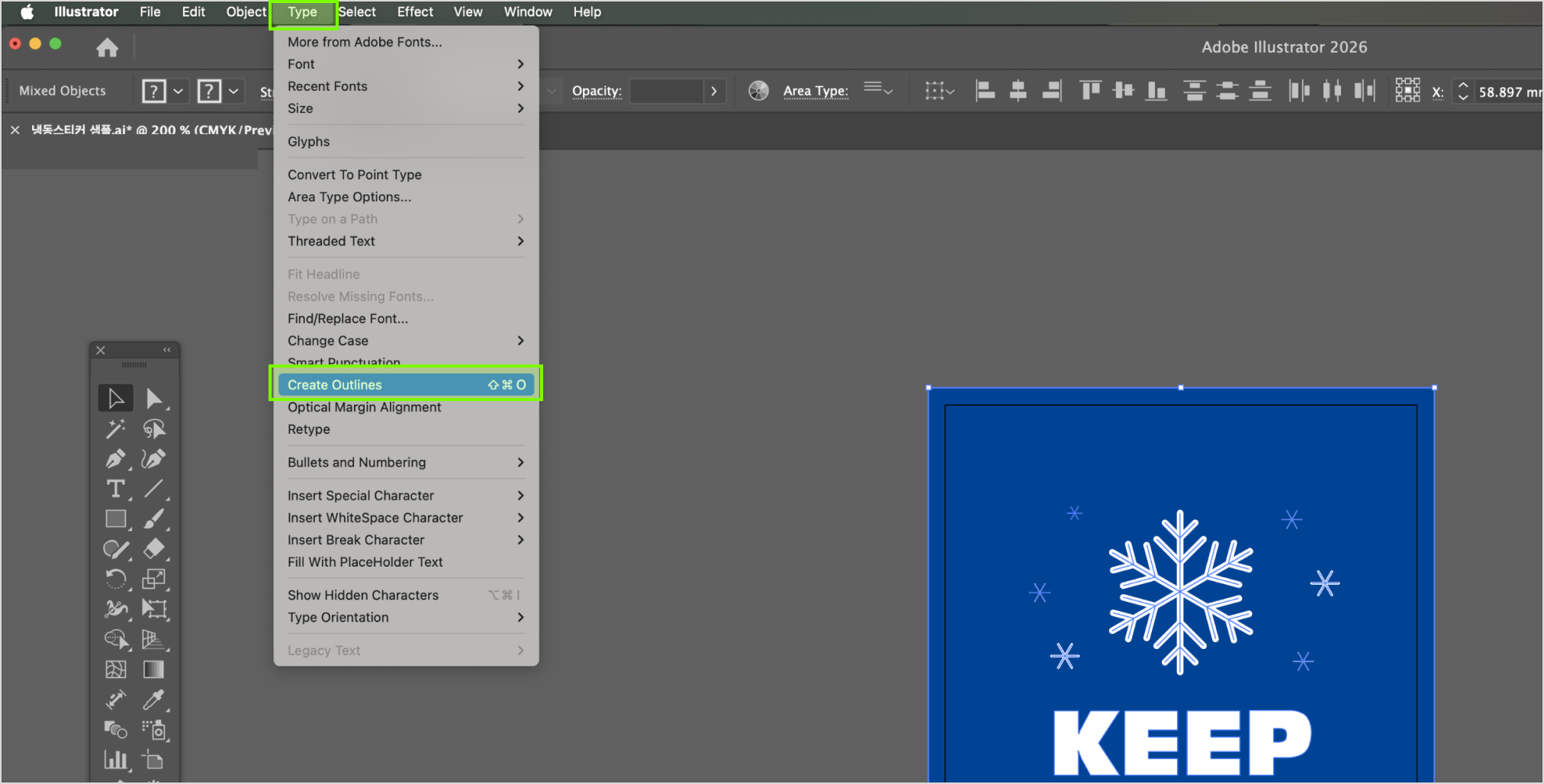
For content with fonts, please "Create Outline" in AI (Illustrator) before saving as PDF. Short Key: Ctrl(Command)+Shift+O

2.Save PDF

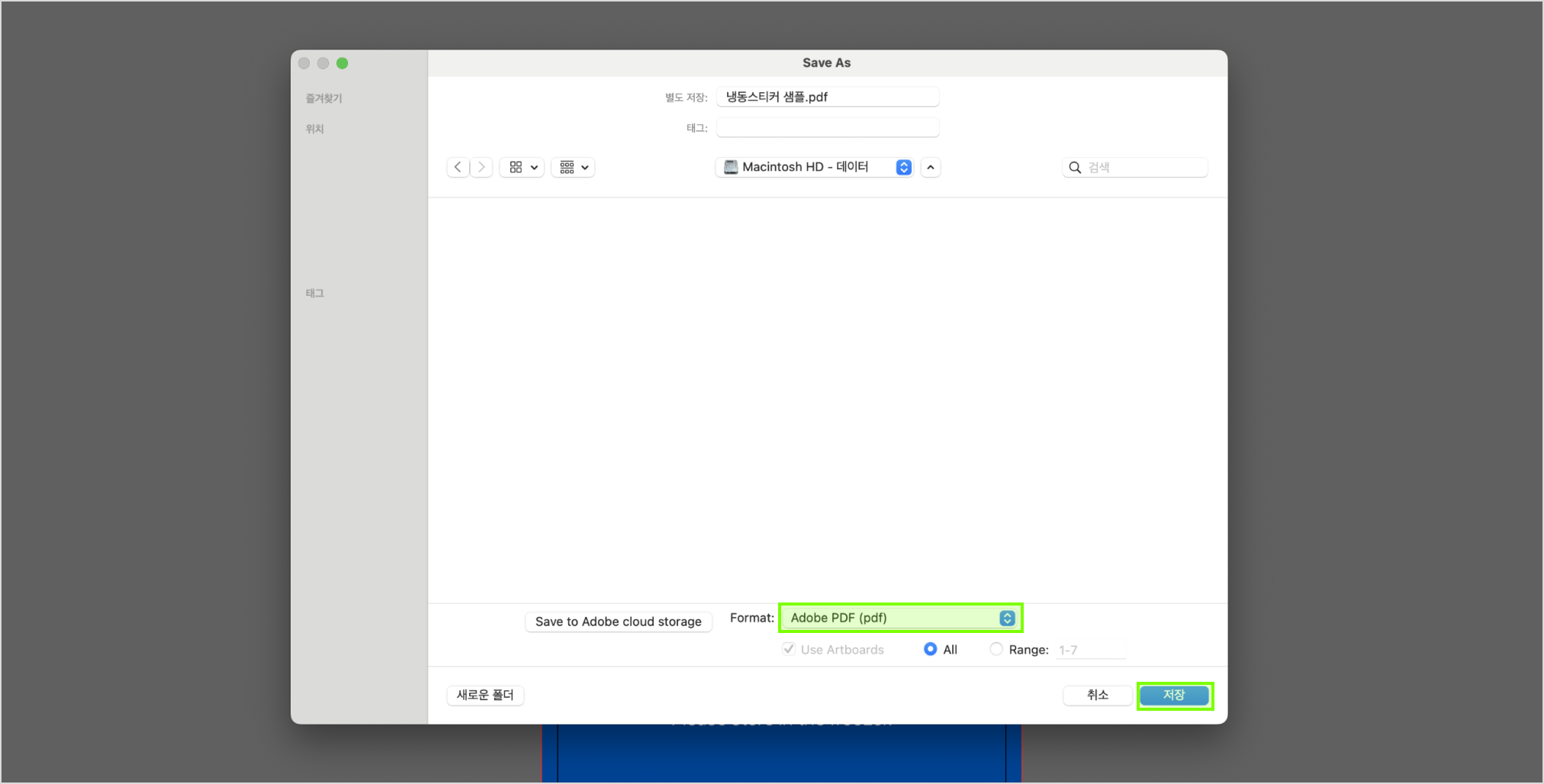
Click (Save As…) and save the file under Adobe PDF format.
+ more details

3.Save PDF

Ensure to select Press Quality / Acrobat 6 (PDF 1.5) or above and
Create Acrobat Layers from Top-Level Layers before saving a PDF file.

1. Upload Image / PDF Upload

Please upload your desired image either in JPG/PNG or PDF Upload buttons located at the the bottom left of the Editor.

1. 이미지 불러오기

2. Apply Image

Click on the uploaded image on left panel to apply image to the product.
To scale or reposition image: Drag on any corner of the image to resize or move image
Editing Functions (top panel): Arrange/Align, Flip, Sort, Rotate

2. 이미지 적용하기

2-1. Rounded Corners

The roundness of the corners can be set under Rounded Corners (mm).
Choose from 1mm to 20mm.

2-1. 라운드값 설정

3. Add Page

Additional designs can be added by clicking on the (+) at the bottom panel of Editor.

4. 편집종료

4. Save & Close

Once applied image has been adjusted to your preference, click Save & Close at the top right corner to save changes and exit editor.

4. 편집종료

Freezer Labels

Material Yupo Freezer Use (80g)
Shape Square, Round, Oval, Rounded Corners, Free Shape
Coating Matte / Glossy

- A 1-2mm print/cut shift may occur during production.
- Colors in design file shown on monitor screen may differ from the actual color print output.

*Length of cutlines:
E.g. An A5 sheet size with multiple cutlines of over a total of 3,500mm may be subjected to additional charges.

Goods exchange and return is applicable when:
- Complete refund or reproduction is applicable only if the final output is 100% different from the ordered item.
- When the product is unusable, refund and reproduction is applicable.
( Step 1 – photos verification, 2 step – product inspection. Please note that at least 80% of the returned product should be in good condition for us to bare the shipping fee of returned goods).

Goods exchange and refund is not applicable when
- Cancellation and refund is not applicable if printing files received without any problem and printing process completed smoothly.
- Mistake and typo related problems caused by users’ carelessness or misunderstanding of instructions and terms and conditions listed in both user and product guides.

Shipping Method

Delivery Method

· Parcel Delivery [Prepaid]
· QUICK Service [By Customer]
· DVER Quick [Prepaid - In-House]
· Freight Delivery [Large-Format]
· Self-Pick Up

Delivery Region

Local Shipping Only (Nationwide)

Delivery Fees

· Base Shipping: 3,500won (additional charges may incur depending on weight/bulkiness)
· Digital Prints over 50,000 won: FREE Shipping. (View Fees below for exceptions)
· Parcel & Quick Delivery: Additional charges may occur if order is too bulky or heavy.

Please click below for the detailed Shipping Fees guide.

View Fees


Delivery Details

· Orders will be produced and shipped after payment is completed.
· Delivery Timeline (est): 1-3 business days (excluding weekends & public holidays).
· For Express delivery, please select either QUICK [By Customer] or DVER Quick [Prepaid - In-House].
· QUICK is only available within Seoul and Gyeonggi-do.
· Multiple orders of the same shipping address can be bundled before orders are shipped out.
· Self-Pick Up & QUICK: SMS notifications will be separated with large-format items & other product categories.
· Foamboard/Foamex cannot be shipped to Jeju-do, rural islands or mountainous areas.
· Some large format items will be shipped via Logen Courier.

Easy Order